Python 实现 PowerPoint SmartArt 图形生成
作者:袖梨
2026-05-30
在商务演示中,SmartArt图形能直观展示复杂信息,Python结合Spire.Presentation库可实现自动化创建。本文将详细介绍如何通过代码高效生成专业级演示文档中的各类SmartArt图表。
环境准备
使用前需安装Spire.Presentation库:
pip install Spire.Presentation
该库提供完整的PowerPoint操作接口,支持SmartArt图形的全功能控制。
创建 SmartArt 图形的基本步骤
初始化演示文稿并添加 SmartArt
通过指定坐标和尺寸创建SmartArt图形,并选择适合的布局类型:
from spire.presentation import *
from spire.presentation.common import *# 创建演示对象
presentation = Presentation()
slide = presentation.Slides[0]# 添加齿轮布局图形
smartArt = slide.Shapes.AppendSmartArt(
    200, 60, 300, 300, SmartArtLayoutType.Gear)
常用布局类型包括:
BasicCycle- 基础循环图Process- 流程图Hierarchy- 组织架构图Relationship- 关系示意图Matrix- 矩阵图表Gear- 齿轮结构图
设置 SmartArt 样式和颜色
通过样式和颜色配置增强视觉效果:
# 应用微妙效果样式
smartArt.Style = SmartArtStyleType.SubtleEffect# 使用渐变循环配色
smartArt.ColorStyle = SmartArtColorType.GradientLoopAccent3
可选样式类型:
SimpleFill- 简约填充SubtleEffect- 柔和特效ModerateEffect- 中度特效IntenseEffect- 强烈特效
管理 SmartArt 节点
清除默认节点
采用两步法安全删除预设节点:
nodes_to_remove = []
for node in smartArt.Nodes:
    nodes_to_remove.append(node)for node in nodes_to_remove:
    smartArt.Nodes.RemoveNode(node)
添加自定义节点并设置文本
为节点添加业务文本并设置格式:
node1 = smartArt.Nodes.AddNode()
node1.TextFrame.Text = "数据采集"node2 = smartArt.Nodes.AddNode()
node2.TextFrame.Text = "数据处理"node2.TextFrame.TextRange.Fill.FillType = FillFormatType.Solid
node2.TextFrame.TextRange.Fill.SolidColor.KnownColor = KnownColors.Black
高级定制技巧
调整 SmartArt 颜色主题
动态修改现有图形的配色方案:
for shape in presentation.Slides[0].Shapes:
    if isinstance(shape, ISmartArt):
        if shape.ColorStyle == SmartArtColorType.ColoredFillAccent1:
            shape.ColorStyle = SmartArtColorType.ColorfulAccentColors
设置节点轮廓样式
增强节点边缘显示效果:
for node in smartArt.Nodes:
    node.Shape.Line.FillType = FillFormatType.Solid
    node.Shape.Line.SolidFillColor.Color = Color.get_Blue()
    node.Shape.Line.Width = 2.0
实际应用示例
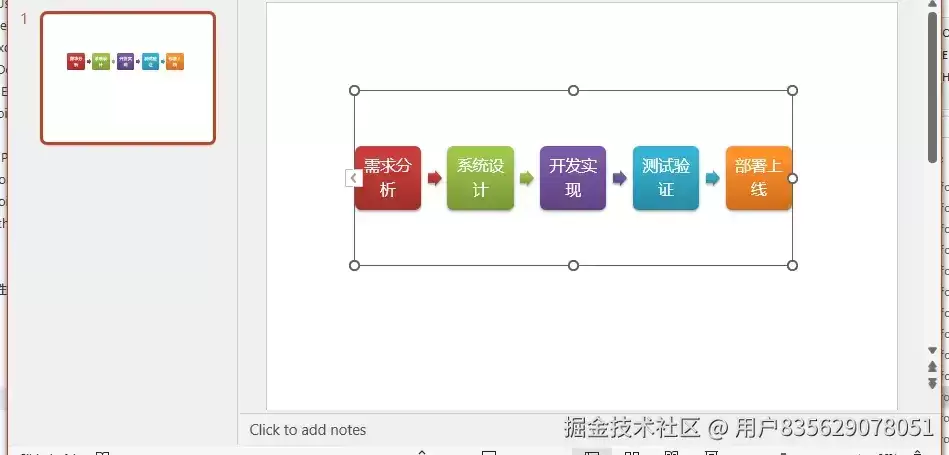
完整业务流程SmartArt创建示例:
def create_process_smartart():
    presentation = Presentation()
    slide = presentation.Slides[0]
    smartArt = slide.Shapes.AppendSmartArt(
        100, 100, 500, 200, SmartArtLayoutType.BasicProcess)
    smartArt.Style = SmartArtStyleType.ModerateEffect
    smartArt.ColorStyle = SmartArtColorType.ColorfulAccentColors
    nodes_to_remove = list(smartArt.Nodes)
    for node in nodes_to_remove:
        smartArt.Nodes.RemoveNode(node)
    steps = ["需求分析", "系统设计", "开发实现", "测试验证", "部署上线"]
    for step in steps:
        node = smartArt.Nodes.AddNode()
        node.TextFrame.Text = step
    presentation.SaveToFile("business_process.pptx", FileFormat.Pptx2010)
实用技巧总结
- 布局适配:根据信息特征选择对应布局类型
- 节点数量:单图保持5-7个节点最佳
- 配色统一:确保与整体文档风格协调
- 文本精简:节点文字需简明扼要
- 批量生成:结合数据源实现自动化生产
通过Python控制SmartArt图形,能大幅提升演示文档制作效率,特别适合需要定期更新的业务流程展示。掌握这些技巧后,可进一步探索动画效果等高级功能,打造更具表现力的专业演示。