Codex中文乱码怎么解决?Windows下Codex乱码排查与处理方案详解
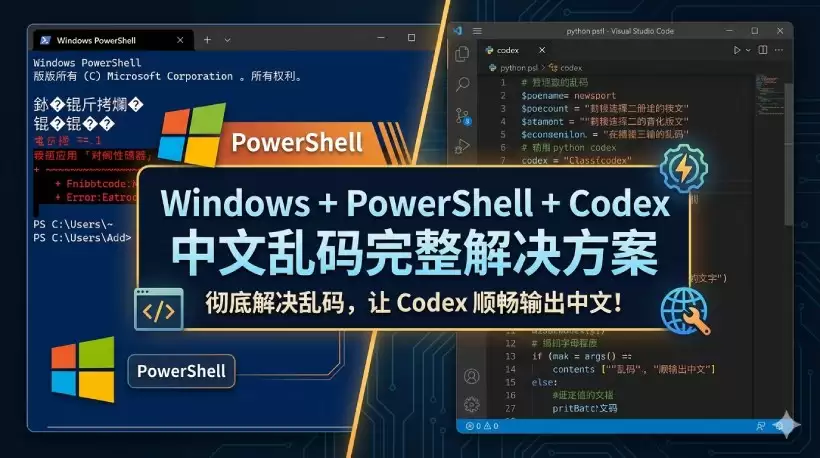
Codex 客户端编写代码时若出现中文乱码,问题根源通常不在 Codex,而是 Windows 系统终端,特别是 PowerShell 5 默认采用 GBK 编码,与 Codex 基于 UTF-8 生成的内容不一致。下面给出完整解决方案。
核心解决思路
将终端、编辑器及文件操作的全链路编码统一为 UTF-8(无 BOM)。
具体操作步骤
升级到 PowerShell 7
默认编码存在差异:PowerShell 7 支持 UTF-8,PowerShell 5 使用的则是 GBK。
运行操作应在命令提示符或 Windows Terminal 打开后执行:
winget install --id Microsoft.Powershell
完成安装后输入 pwsh 版本核验前,先进入 PowerShell 7:
$PSVersionTable.PSVersion
输出结果应为 7.x,同时 PSEdition 应显示为 Core。
配置 PowerShell 7 强制使用 UTF-8(无 BOM)
编辑 PowerShell 配置文件(Profile):
在 PowerShell 7 内运行:
New-Item -Path $PROFILE -ItemType File -Force
notepad $PROFILE
粘贴下列内容后保存:
chcp 65001 | Out-Null
[Console]::InputEncoding = [System.Text.UTF8Encoding]::new()
[Console]::OutputEncoding = [System.Text.UTF8Encoding]::new()
$OutputEncoding = [System.Text.UTF8Encoding]::new()
$PSDefaultParameterValues['Out-File:Encoding'] = 'utf8'
$PSDefaultParameterValues['Set-Content:Encoding'] = 'utf8'
$PSDefaultParameterValues['Add-Content:Encoding'] = 'utf8'
编码核验需在 PowerShell 7 重新启动后进行:
[Console]::OutputEncoding
应当显示为 UTF-8。
配置 VS Code 使用 UTF-8 和 PowerShell 7
打开 VS Code 设置(Ctrl + ,),随后切换至 settings.json,并添加:
{
"files.encoding": "utf8",
"files.autoGuessEncoding": true,
"terminal.integrated.defaultProfile.windows": "PowerShell",
"terminal.integrated.profiles.windows": {
"PowerShell": {
"path": "C:Program FilesPowerShell7pwsh.exe"
}
}
}
按 Ctrl + Shift + P,输入 Terminal: Select Default Profile,选择 PowerShell。
在 Codex 指令中明确指定编码
例如,可在发给 Codex 的指令中明确限定编码必须为 UTF-8:
“请编辑此文件,要求:文件编码为 UTF-8(无 BOM),中文注释直接输出,禁止 uXXXX 转义,写入时使用 UTF-8 编码。”
(可选)项目级编码规范
在项目根目录新建 .editorconfig 文件:
root = true
[*]
charset = utf-8
end_of_line = lf
常见误区提醒
不要依赖 chcp 65001 进行临时切换(它只对当前会话有效)。
避免使用 > 或 Out-File 写入文件(默认会生成 UTF-16)。
建议使用 Set-Content -Encoding utf8 或 Add-Content -Encoding utf8。
验证问题是否解决
在 VS Code 终端中运行:
[Console]::OutputEncoding
显示 UTF-8 便说明终端编码正确。
让 Codex 生成带中文内容的代码,例如中文注释;保存文件后,中文应能正常显示。
完成这些设置后,超过 90% 的 Codex 中文乱码问题都能得到彻底解决。